Windows 10: Converting MBT to GPT+EFI Partition Type
Product: Windows 10
Command: mbt2gpt.exe
Sharing my experience to convert my MBT boot partition that run Windows 10 to GPT with EFI boot.
Let me list down the step I took for my ASUS Z97-A motherboard:
- Run "CMD" as administrator
- Determine the disk number
- diskpart - utility to query disk partition
- Ref: https://learn.microsoft.com/en-us/windows-server/administration/windows-commands/diskpart
- list - list all disks
- select disk 0 - this is my boot disk, i.e. C:
- detail - show all partitions. Ensure the partition size match my C: and double confirm disk 0 is correct
- Boot into recovery mode
- Click Start > Settings to bring up Windows Setting (Control Panel)
- Click Update & Security menu
- Click Recovery menu
- Convert disk 0 MBT partition to GPT for entire disk. This will convert entire disk to GPT partition design. It is not possible to only convert specific partition
- mbt2gpt /convert /disk:0
- Example output
- MBR2GPT will now attempt to convert disk 0.
- If conversion is successful the disk can only be booted in GPT mode.
- These changes cannot be undone!
MBR2GPT: Retrieving layout of disk
MBR2GPT: Validating layout, disk sector size is: 512 bytes
MBR2GPT: Trying to shrink the system partition
MBR2GPT: Trying to shrink the OS partition
MBR2GPT: Creating the EFI system partition
MBR2GPT: Installing the new boot files
MBR2GPT: Performing the layout conversion
MBR2GPT: Migrating default boot entry
MBR2GPT: Adding recovery boot entry
MBR2GPT: Fixing drive letter mapping
MBR2GPT: Conversion completed successfully
MBR2GPT: Before the new system can boot properly you need to switch the firmware to boot to UEFI mode!
- Ensure the output of mbt2gpt shows success
- mbt2gpt will create a new hidden partition to keep EFI boot info. You can verify by running diskpart
- select disk 0
- detail - you should see an extra EFI partition
- The next part is to reboot computer and get into BIOS setting to change few configurations
- Change disk boot manager: Windows Boot Manager (if available), or EFI (for disk 0 in my example)
- Change boot compatibility order as EFI first, or EFI (EFI means it uses GPT), not legacy MBT
- For ASUS motherboard, power on or reboot, then immediately press DEL key when you hear beep sound. This will get into BIOS screen
- Click on "Boot" menu option'
- Select "CSM (Compatibility Support Module)" section, and disable CSM for full EFI disk support only (that means non EFI disk won't be bootable, including USB boot drive that doesn't use EFI). This means it won't support older MBT disk format
- If you would like to keep the support of both MBT & EFI, then you can keep it Auto or Enabled
- If you keep it Enabled, then set the boot priority to UEFI first, not Legacy OPROM first
- My ASUS motherboard has additional choice to set priority for other device type, e.g. network, PCI-E (NVMe SSD), storage (SATA, USB)
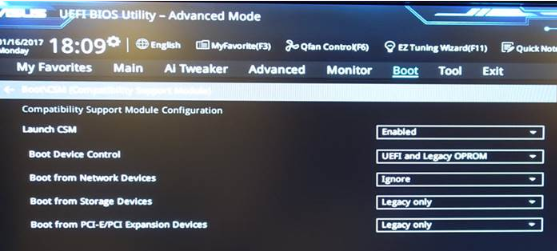
- Return back to previous menu, and configure "Boot Option Priorities" to set Boot Option #1 to use EFI
- For my ASUS motherboard, disk 0 boot option must pick Windows Boot Manager
- Now BIOS is configured, and press F10 to save, and reboot
- Now you should see Windows 10 is able to boot up like MBT disk type after converted to GPT with EFI


Comments
Post a Comment